Application Management
AndroidNexus integrates with Managed Google Play to provide powerful application management for your Android fleet. Access the Applications page by clicking Applications in the top navigation bar.
The Applications Page
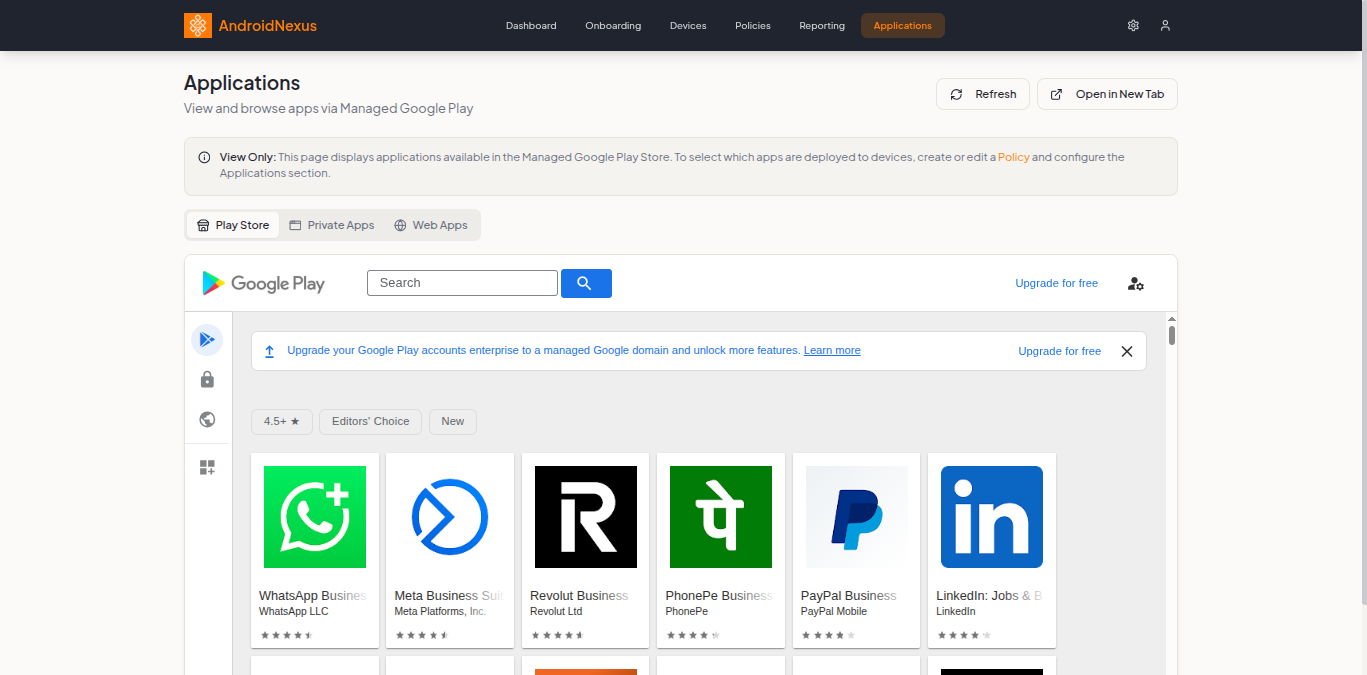
The Applications page provides a view-only interface to browse available applications through Managed Google Play.
Important Note
At the top of the page, you'll see an informational banner:
View Only: This page displays applications available in the Managed Google Play Store. To select which apps are deployed to devices, create or edit a Policy and configure the Applications section.
Applications are deployed to devices through policies, not directly from this page. This page is for browsing and organizing your app catalog.
Action Buttons
| Button | Description |
|---|---|
| Refresh | Reload the application list |
| Open in New Tab | Open Managed Google Play in a new browser tab |
Application Tabs
The page is organized into three tabs:
Play Store Tab
Browse the full Google Play Store within the managed context:
- Search for public applications
- Browse by category (4.5+ rated, Editors' Choice, New)
- Click apps to view details before adding them to a policy's App Catalog
The embedded Play Store shows the same interface as the Google Admin console's Managed Play iframe.
Private Apps Tab
Manage your organization's internal applications:
- Upload custom APK files
- Create apps for internal distribution only
- These apps are only visible to your organization
Web Apps Tab
Create Progressive Web App (PWA) shortcuts:
- Convert web pages into app-like experiences
- Users access them like native apps
- Useful for internal portals, dashboards, and tools
How App Deployment Works
Unlike some MDM systems where you push apps directly, AndroidNexus uses a policy-based approach. There's no separate "approval" step - Google deprecated app approval as a distinct action, so the Applications page is for browsing and organizing only. Apps are added directly to a policy's App Catalog instead.
1. Browse Available Apps
Use the Applications page to see what's available before adding apps to a policy:
- Go to Applications
- Browse the Play Store tab for public apps, or use the Private Apps and Web Apps tabs for your organization's own apps
- Click an app to view its details
2. Add Apps to a Policy's App Catalog
Then, add apps to a policy directly:
- Go to Policies
- Create a new policy or edit an existing one
- Click the Applications tab in the policy configuration
- Click Add apps in the App Catalog section to browse Google Play, upload a private APK, or add a web app
Private app uploads are effectively limited to 200MB when using a standard APK. See Upload Format: AAB vs. APK for why Google recommends using the Android App Bundle (AAB) format instead.
3. Configure Each App
Click the Configure (gear) icon on an app in the App Catalog to set its per-app behavior:
| Setting | Options |
|---|---|
| Install Type | Required for Setup, Required (after setup), or Available (user choice) |
| Runtime Permissions | Prompt User, Auto Grant, or Auto Deny |
| Update Policy | Play Store Default, Auto Update, or Postpone (90 days) |
| Credential Provider (Android 14+) | Use Policy Default, or Allow as Credential Provider |
Each app's status badge (Setup Required or Available) reflects its Install Type. Use the Block (circle-slash) icon to block an app, or Remove (trash) to take it out of the policy entirely.
4. Assign Apps to the Device Experience
How assigned apps actually appear on the device depends on the policy's Device Experience mode:
- Standard - all catalog apps install normally, no additional assignment needed
- Single-app kiosk - pick a single Kiosk app the device locks to
- Basic Multi-app - pick one or more Home-screen apps shown on Android's native launcher (this mode ignores wallpaper)
- Custom launcher - apps are placed manually in the launcher designer
See the Applications Settings reference for the full Device Experience and Kiosk Mode Settings breakdown.
5. Assign Policy to Devices
Finally, devices receive apps through their assigned policy:
- During enrollment (via onboarding token with policy assignment)
- By applying a policy to existing devices
Application Types
Public Apps (Google Play)
Apps available on the Google Play Store:
- Millions of apps available
- Automatic security scanning by Google
- Managed configuration support (for compatible apps)
- Automatic updates
Private Apps
Your organization's internal applications:
- Hosted on Google's infrastructure
- Only visible to your organization
- Supports managed configurations
- Upload directly through the Private Apps tab
Upload Format: AAB vs. APK
When uploading a private app, Google recommends using the Android App Bundle (AAB) format instead of a raw APK.
An AAB is a publishing format (.aab file) that contains all of an app's compiled code and resources, but defers generating the final installable package to Google Play. Instead of shipping one large, one-size-fits-all APK, Google Play uses the AAB to generate optimized APKs for each device's specific configuration (screen density, CPU architecture, language, and so on), so each device only downloads the code and resources it actually needs.
Why Google recommends AAB over APK:
- Smaller downloads and install size per device, since users only get the code/resources relevant to their specific device
- Simplified releases - you build, sign, and upload one AAB instead of managing multiple APKs for different device configurations
- As of August 2021, Google requires new apps to publish using AAB format
The 200MB limit: A single APK has a hard size ceiling, and Google Play's compressed download size restriction caps what a device can download to install an app at 4GB total (base APK plus configuration APKs). In practice, a traditional single APK upload is effectively capped at 200MB. If your private app's APK exceeds that 200MB limit, Google Play will reject the upload.
Publishing as an AAB avoids this problem because Google Play splits the app into a smaller base APK plus device-specific configuration APKs, so no single device has to download the full 200MB+ payload at once. If your app's assets are still very large (for example, games with large media files), Google's Play Asset Delivery can further split large assets into their own delivery packages.
In practice: when uploading a private app in the Private Apps tab, use an .aab file whenever your build tooling supports it. If you only have an APK and it's under 200MB, it will still upload, but you won't get the smaller optimized downloads that AAB provides.
Web Apps
Progressive Web Apps converted to app shortcuts:
- No native code required
- Access web applications like native apps
- Useful for internal tools and portals
- Can be installed like native apps via Install Type
Managed Configurations
Many enterprise apps support managed configurations (also called App Config). These allow IT to pre-configure app settings:
Common Examples
Microsoft Outlook:
- Pre-configure email server and domain
- Set account restrictions
- Control attachment saving
Chrome Browser:
- Set homepage and bookmarks
- Configure allowed/blocked URLs
- Control sync settings
VPN Apps:
- Pre-configure server addresses
- Install certificates
- Enable always-on VPN
Configuring Managed Settings
Managed configurations are set within the policy's App Catalog when configuring an app.
App Updates
There are two separate update controls, at two different levels:
| Level | Setting | Options |
|---|---|---|
| Per-app | Update Policy (set when configuring an app in the App Catalog) | Play Store Default, Auto Update, Postpone (90 days) |
| Device-level | System Update Policy (set in the policy's System Settings tab) | Automatic, Windowed, Postpone |
The per-app Update Policy controls how that specific app updates through Google Play. The device-level System Update Policy controls Android OS and security patch updates instead, and is unrelated to individual app versions.
Viewing Installed Apps on a Device
To see what apps are installed on a specific device:
- Go to Devices
- Click on a device to open the detail view
- Click the Applications tab
- View all installed apps with versions
Best Practices
- Browse before deploying - Check an app's details in Applications first before adding it to a policy's App Catalog
- Test with a pilot group - Create a test policy and apply to test devices before wide deployment
- Use "Required for Setup" sparingly - Reserve it for apps that genuinely block device setup if missing
- Configure managed settings - Pre-configure apps to reduce user setup burden
- Monitor app inventory - Regularly check device app lists for compliance
- Match Update Policy to use case - Use Postpone for apps you want to validate before rolling out a new version fleet-wide
Workflow Summary
1. Browse apps in Applications page
   └── Search Play Store
   └── Upload Private Apps
   └── Create Web Apps

2. Add apps to a Policy's App Catalog
   └── Go to Policies > Edit/Create Policy
   └── Click Applications tab > App Catalog > Add apps
   └── Configure Install Type, Runtime Permissions, Update Policy, Credential Provider

3. Assign apps via Device Experience
   └── Standard: all catalog apps install normally
   └── Single-app kiosk: choose one Kiosk app
   └── Basic Multi-app: choose Home-screen apps
   └── Custom launcher: place apps in the launcher designer

4. Assign Policy to devices
   └── Via Onboarding token
   └── Via Devices > Apply Policy
Next Steps
- Create a Policy - Add applications to a policy
- Device Enrollment - Enroll devices to receive apps
- Reporting - View app deployment status