Settings Overview
The Settings page allows you to manage your organization's configuration, team access, and integrations. Access settings by clicking the gear icon in the top navigation bar.
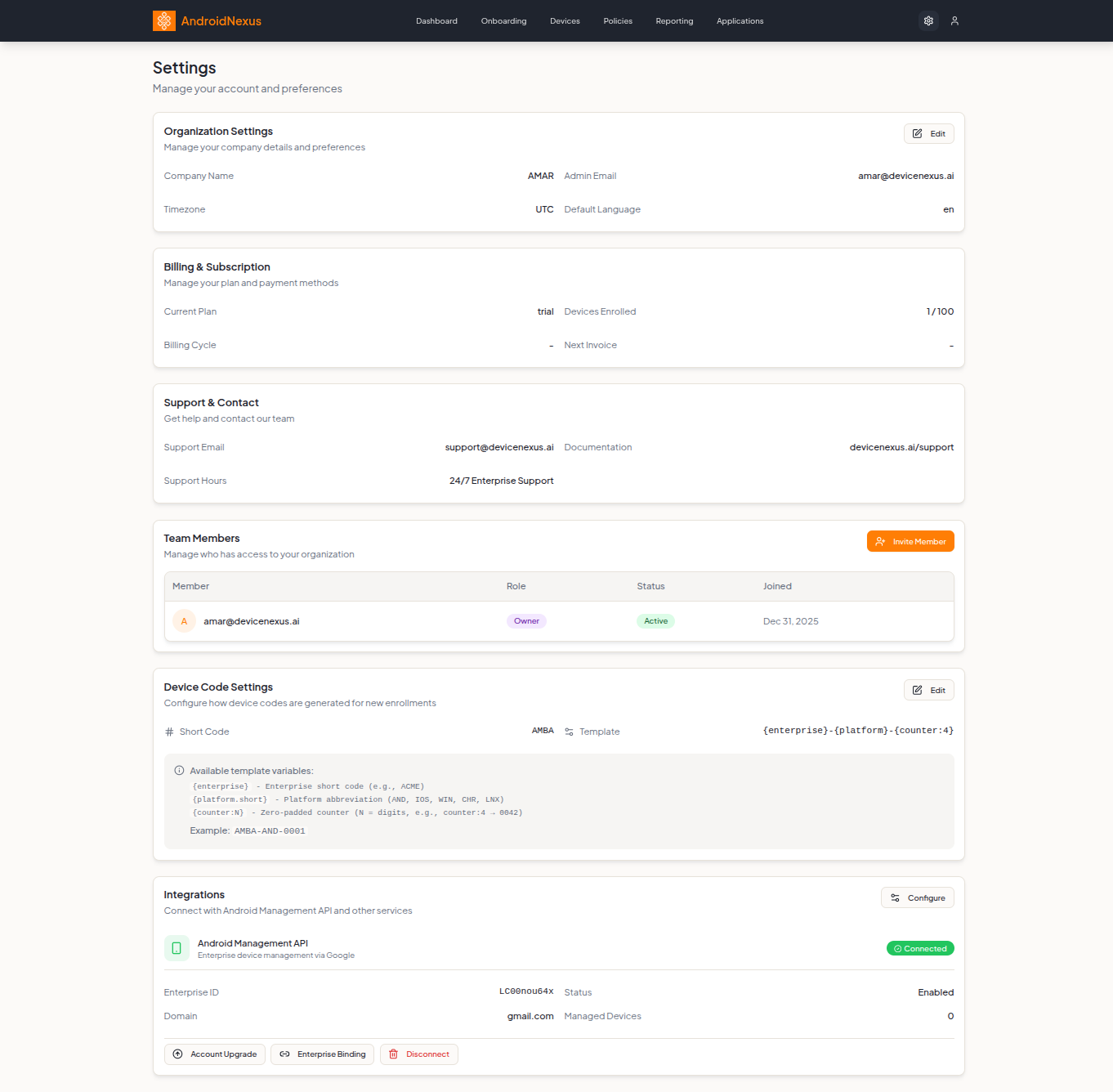
Integrations
Connect with Android Management API and other services.
Android Management API
Enterprise device management via Google's official API.
| Field | Description |
|---|---|
| Enterprise ID | Your Google-assigned enterprise identifier (starts with enterprises/) |
| Status | Enabled/Disabled |
| Domain | Associated Google Workspace domain |
| Managed Devices | Count of devices managed through AMAPI |
A green Connected badge appears next to the integration name when it's active.
Integration Actions
| Button | Description |
|---|---|
| Account Upgrade | Upgrade to a managed Google domain |
| Enterprise Binding | Bind or rebind your enterprise |
| Disconnect | Remove the API connection (shown in red) |
Click Configure to open the Edit AMAPI Configuration panel.
Edit AMAPI Configuration
This panel is where you set up or update your Android Management API integration:
Enterprise Configuration
| Field | Description |
|---|---|
| Enterprise ID | The Google-assigned enterprise ID (starts with enterprises/) |
| Google Workspace Domain | Your organization's Google Workspace domain |
| Admin Email | Google Workspace admin email (must match the workspace domain) |
Features
| Toggle | Description |
|---|---|
| Enable AMAPI Integration | Turns on Android Management API integration |
| Auto-Sync Devices | Automatically synchronizes device data. When enabled, set a Sync Interval (minutes) for how often devices sync |
| Managed Google Play | Enables Managed Google Play for app distribution |
Webhooks
| Field | Description |
|---|---|
| Enable Webhooks | Turns on real-time notifications for device events |
| Webhook URL | Endpoint that receives webhook payloads (e.g., https://api.androidnexus.ai/api/v1/webhooks/amapi/pubsub) |
| Webhook Secret (optional) | Used to verify webhook signatures |
Connection Test
Click Test Connection to verify the integration is configured correctly.
Organization Settings
Manage your company details and preferences.
| Field | Editable | Description |
|---|---|---|
| Company Name | Yes | Your organization's display name |
| Owner Email | No | Primary account owner's email address |
| Timezone | Yes | Default timezone for reports and timestamps (e.g., America/Los_Angeles) |
| Default Language | No | Interface language (e.g., en) |
Click the Edit button to modify Company Name and Timezone.
Billing & Subscription
View and manage your plan and payment methods.
| Field | Description |
|---|---|
| Subscription Status | Current subscription state (e.g., Active) |
| Devices Enrolled | Number of devices currently enrolled |
Click Subscription & Billing to manage your plan and payment methods in a separate window.
Support & Contact
Get help and contact information.
| Field | Description |
|---|---|
| Support Email | [email protected] |
| Documentation | https://docs.androidnexus.ai/ |
Team Members
Manage who has access to your organization. Click the orange Invite Member button to add new team members.
The team members table shows:
| Column | Description |
|---|---|
| Member | User email with avatar initial |
| Role | Permission level (Owner, Admin, Member) |
| Status | Account status (Active, Pending, Inactive) |
| Joined | Date the member joined |
For detailed information about what each role can do, see Roles & Permissions.
Device Code Settings
Configure how device codes are generated for new enrollments.
| Field | Description |
|---|---|
| Short Code | Enterprise abbreviation (e.g., AN) |
| Template | Pattern for device codes |
Template Variables
Use these variables in your device code template:
| Variable | Description | Example |
|---|---|---|
{enterprise} | Enterprise short code | ACME |
{platform.short} | Platform abbreviation | AND, IOS, WIN, CHR, LNX |
{counter:N} | Zero-padded counter (N = digits) | counter:4 → 0042 |
Default Template: {enterprise}-{platform.short}-{counter:4}
Example Output: AN-AND-0001
Click the Edit button to customize your device code format.
Next Steps
- Roles & Permissions - Understand user access levels
- Device Management - Manage your device fleet
- Policy Configuration - Create and manage policies
- Quick Start Guide - Get started with AndroidNexus